To detailed explanation on how to search press here
Using the search engine:
1. To search for a gemstone item in GemeShare™, use the Search engine or click on the desired gemstone type in the 'Gemstone Type' gallery below.
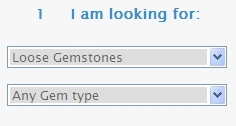
2. Begin your search by selecting the item category type (single gemstone, parcel or jewelry) from the 'Category' drop-down menu.
3. Select the Gemstone type from the 'Gem Type' drop-down menu.
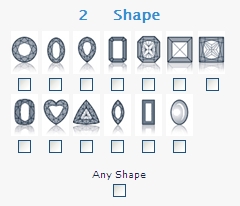
4. Check the desired shapes or cutting styles of the gemstone. If all checkboxes are left unchecked, the search engine will look for all shapes and cutting styles.
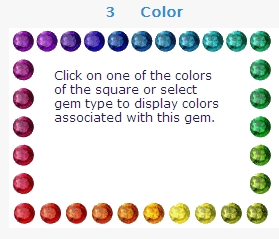
5. Select the desired gemstone color from a ruler of colors associated to this gemstone or from the GemeSquare™
of colors (where the associated hues are framed). Click on the hue closest to the color of your gemstone. The selected color will be shown at the center of the square.
6. Select the weight range of the gemstone from the 'Weight' drop-down menu. An image representing the size of the gem in 3 different shapes will appear.
7. Alternatively, select the measurements range of the gemstone from the 'Dimensions' drop-down menu.
8. Select the price range of the gemstone from the 'Price' drop-down menu.
9. When all parameters were defined, click on the Search button.
Search results:
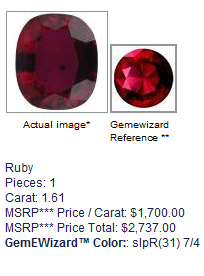
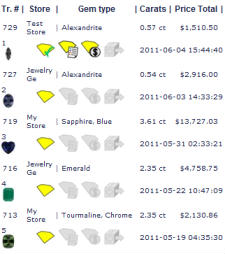
10. You will receive a list of items with the parameters you selected. Each item will have an actual image and an image of the gemstone's Gemewizard® color reference (defined by the owner).
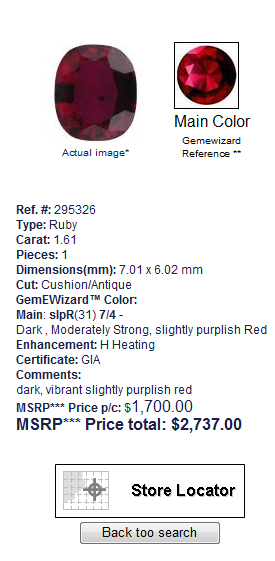
11. In the search results, Click on the item's image you are interested to see full information.
To detailed explanation on how to order press here
Purchasing items:
12. In the search results, Click on the item's image you are interested to see full information.
13. In order to purchase an item, locate the seller store by clicking on 'Store Locator'. If the seller has stores in more than one location, a 'Store Locator' search engine will open.
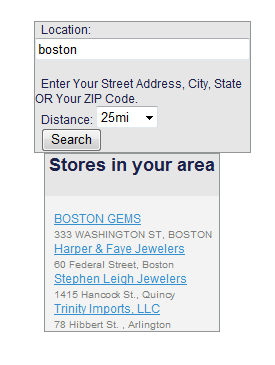
14. The store locator. Type your location (address, city, state or ZIP code) to get stores nearest to you. Select your preferred store by clicking the icon within the map or the store name from the list. Once you click, you will be redirect to the store's page in GemeShare™.
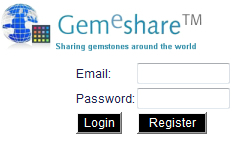
15. Only registered users can buy items in GemeShare™. To login, fill in your email and password at the top of the page. If you did not register yet to the platform, click on 'Register' at the top of the page.
16. To order the item, click on 'Add to shopping cart'.
17. After you have completed selecting your desired items, click on the shopping cart icon at the top bar to see and pay for your selections.
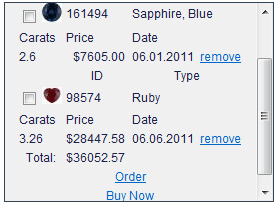
18. At the shopping cart sub-window, review your selections. To remove item from the list, click on 'Remove' in the right hand side of its row.
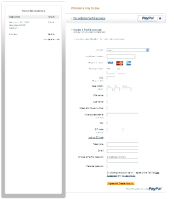
19. By clicking on buy now, you will be redirect to a PayPal payment page to pay for the items.
Tracking your orders:
20. To track your orders' status, click on Customer Transactions at the top bar.